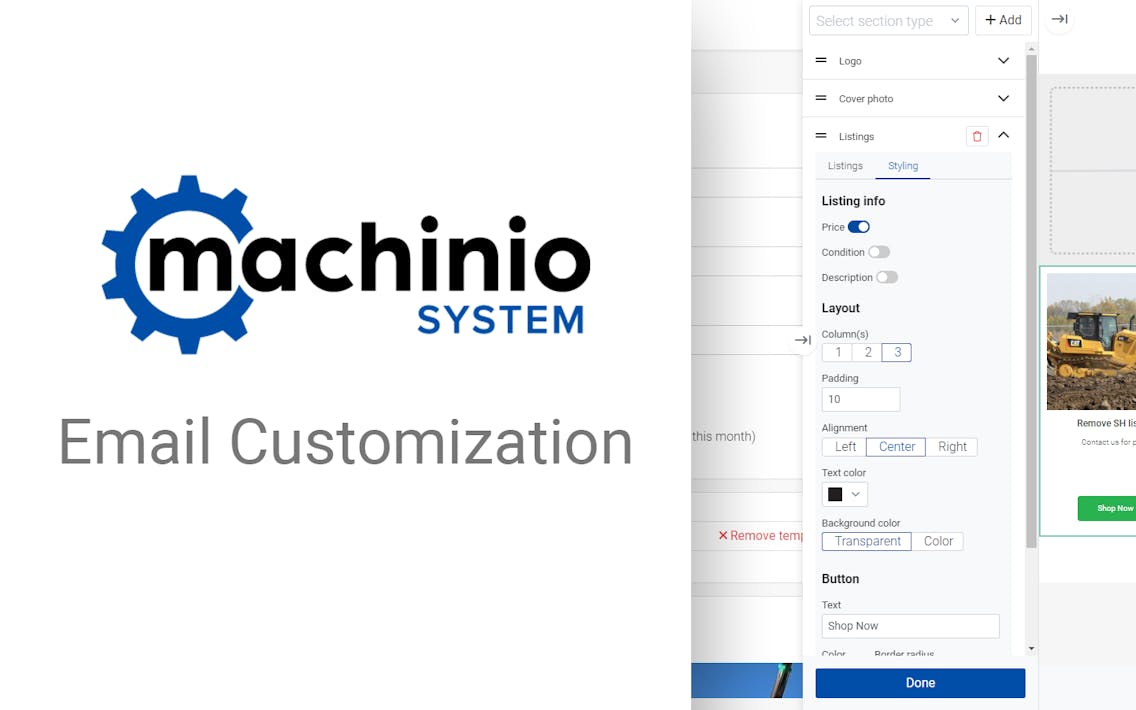

Machinio System’s new email customization feature simplifies the process of designing and sending responsive marketing emails. In just a few clicks you can add content and style your email. No background in coding required!
Get started!
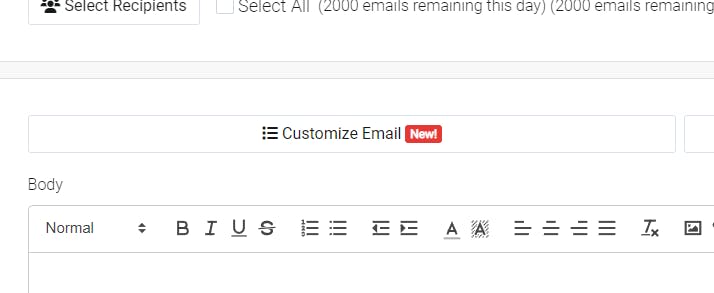
Go to “Email Campaigns” in your Machinio System dashboard and create a new campaign. Start filling in the details for your campaign. Once you get to the “Customize Email” button, click the button to start designing your email campaign.
Adding content
A new panel will appear on the right-hand side of your screen. This panel contains the controls for customizing your email and displays a live preview of the email as you work on it.
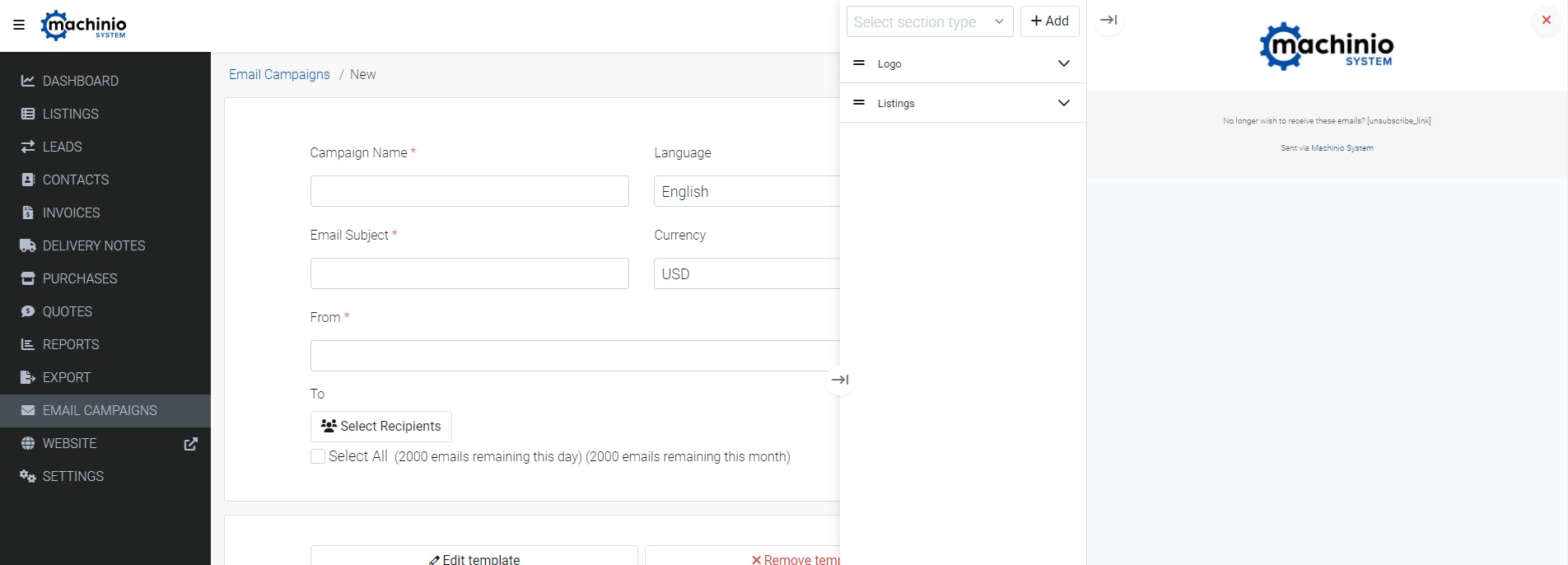
Email templates are built using a number of smaller “sections”. To add a section, select the type of section from the dropdown field in the email customization panel and then click “Add”. The available section types include:
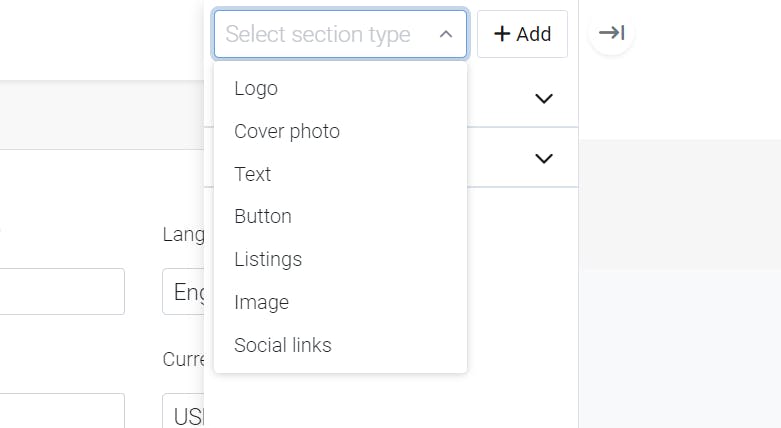
Logo
Your company logo. This is included at the top of email layouts by default but can be removed or moved around.
Cover photo
Include a large image that spans the whole width of your email. Use this to include eye-catching banners and graphics.
Text
A text section allows you to include any text that you’d like. Describe a promotion or share information about your latest products.
Button
Use buttons to include a prominent, eye-catching link to your website. Customize the button with a compelling call-to-action to drive even more traffic to your website.
Listings
Show your customers your products! The listing section displays listing information and photos directly in your email. This is a great way to highlight your inventory and convince users to explore your products.
Image
Do you have an image you want to include? The image section will allow you to embed a single image with a number of styling options. Show off your location or share a photo of your team to give your emails a personal touch.
Social links
Drive engagement on your social media accounts by inviting your contacts to your social media profiles. This section contains social media icons that link to your accounts.
Fine-tuning your email
Once you’ve added all of your content to the email, you can start making some final adjustments to improve the appearance and layout of your email.
Adjusting the layout
Do you want to reorder the sections in your email? Simply drag and drop the sections in the customization panel to quickly reorder them.
Customizing and styling a section
Each section has a number of settings and options for visual customization. Click on a section to bring up its related options.
Let’s use the listing section as an example. Expanding the listing section will provide a field that will allow you to select all of the listings that you want to be visible in the section.
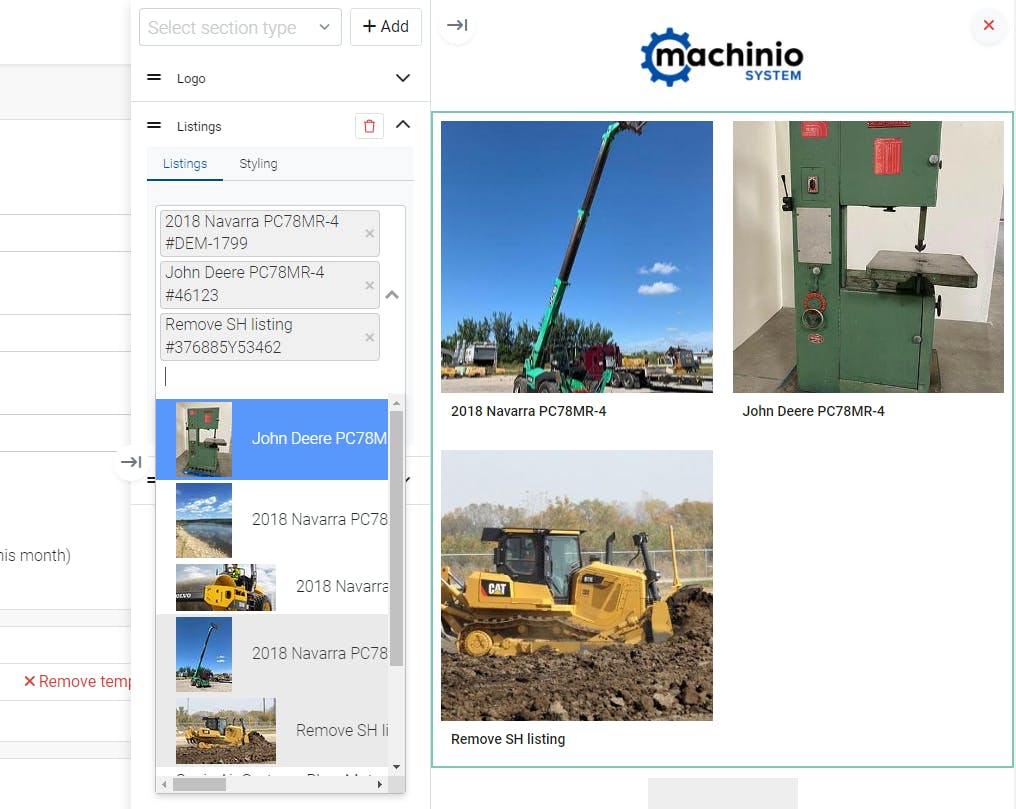
Three listings in two columns? That doesn’t look great. Click on the tab labeled "Styling" to view additional options for displaying these listings.
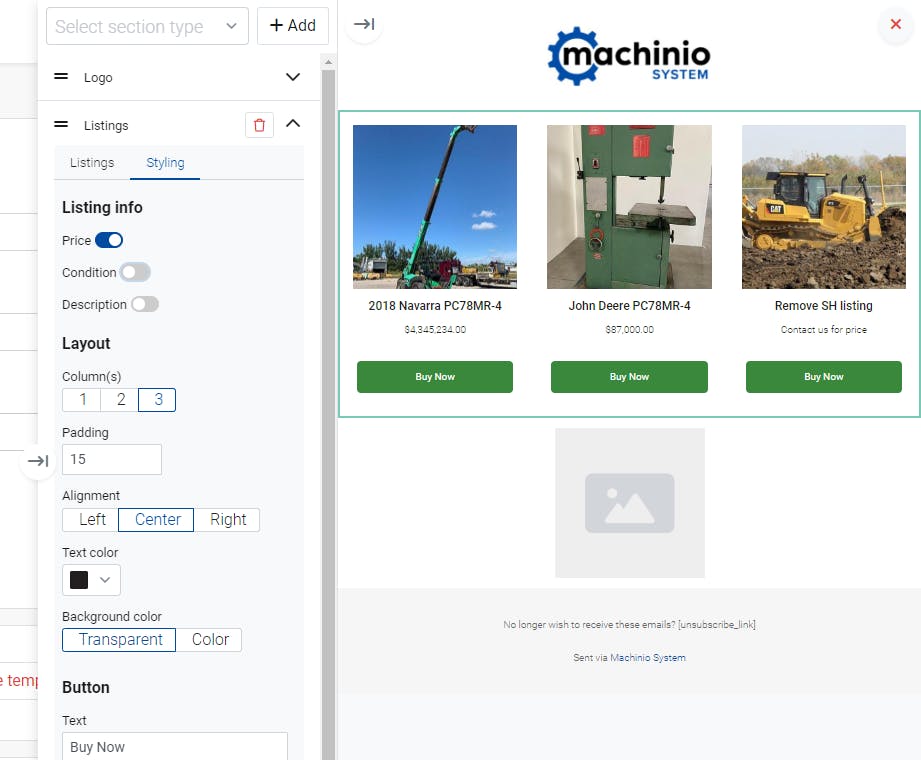
That looks better! The styling settings allowed us to change to a three column layout, include the price, and add “Buy Now” buttons to each listing.
Each section has its own set of easy-to-use settings and style options that make it easy to tailor each email you send. Use the customization options to make these emails fit your brand and convey your message.
If you have any questions about email customization, please reach out to us at system.support@machinio.com